
A few updates have been quietly brewing since Gravity Forms Referral Source Tracking version 1.4.0…
Versions 1.4.1 and 1.4.2 shipped with some genuinely useful improvements, but they never got their own release posts. So, we figured we would catch you up now.
1.5.0 has a pretty exciting new feature: last-touch attribution. 🎯 (Don’t have the plugin? Get it here)
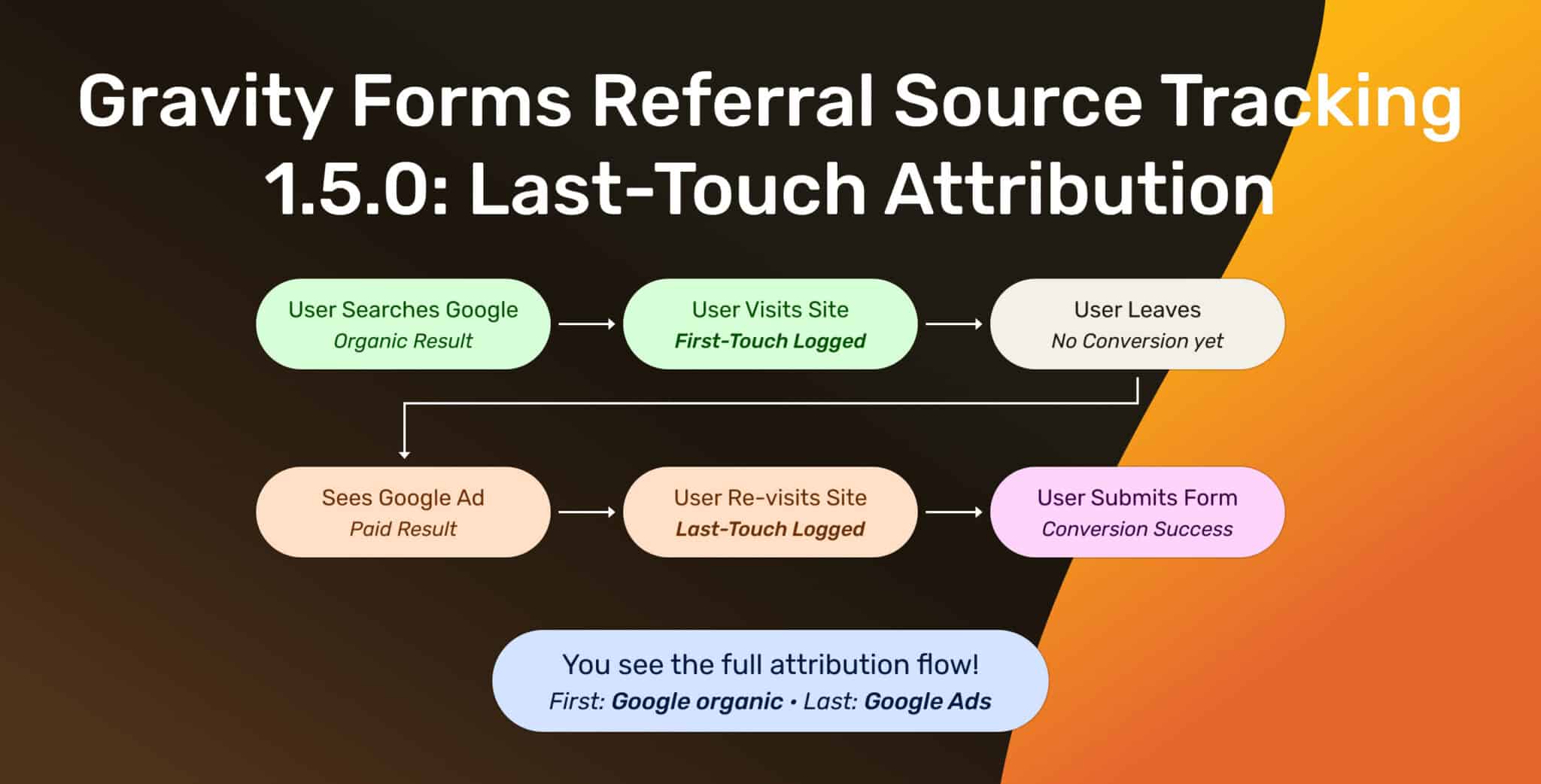
Referral Source Tracking has always captured first-touch attribution, meaning the first place someone came from before they eventually submitted your Gravity Form.
Someone clicks a Google result, lands on your site, and wanders off into the internet wilderness for a while… first-touch remembers google as the source.
Helpful? Absolutely! BUT that does not describe the entire lead journey…
Maybe they come back a week later through your email newsletter, finally decide, “Okay, fine, I do want that quote,” and submit a form.
First-touch tells you how they found you. Last-touch tells you what brought them back when they were ready to act.
Version 1.5.0 gives you both. 🙌
You will also find a new attribution-window setting and an optional cookieless fallback. Let’s get into it.
Table of Contents
First-Touch, Meet Last-Touch 👋
First-touch tells you who opened the door; Last-touch tells you who walked through it.
Until now, Referral Source Tracking recorded only the first source. A visitor landed on your site, the plugin captured where they came from, and that source stayed attached to them for the length of your attribution window.
Perfect for answering, “How did this person first find us?” But less helpful when you also need to know what finally got them back to submit.
With last-touch attribution enabled, the plugin records both:
- First-touch attribution stays exactly as it is.
- Last-touch attribution records the most recent source before submission.
- Last-touch refreshes with every visit, so it reflects the final channel in the journey.
Let’s say someone finds you through Google, returns a week later from your email newsletter, and submits a form. First-touch credits Google; Last-touch credits the email newsletter. Neither one is wrong. Now you can see both sides of the story.
You can enable it under Forms > Settings > Referral Tracking > General with Enable last-touch attribution.
Once it’s enabled, the Reports tab gets a new First / Last control. Use it to flip every chart between first-touch and last-touch views without changing your date range or report filters.
A few other helpful perks:
- See the channels that introduce people to your business versus the ones that help close the deal.
- View last-touch data in entry-list columns and CSV exports.
- Use last-touch merge tags such as {pb_ref_last_source} in notifications and feeds.
- Send last-touch data into your CRM, email platform, webhook, or whatever else keeps your business humming.
One small but important note: last-touch data does not backfill.
Collection begins the day you enable it, so older entries will show as unattributed in the Last view. The Reports tab shows the date last-touch started collecting, so the gap is never a mystery.
Decide How Long a Source Counts ⏳
First-touch is only “first” for as long as you remember it.
Set the attribution window too short, and returning visitors may look brand new every few days. Set it too long, and a source from months ago may get credit for a lead it barely influenced.
Version 1.5.0 adds an Attribution Window setting under General settings, so you can choose exactly how long a visitor’s original source should stick around before a new visit gets captured. The default is seven days, but you can set it anywhere from 1 to 365 days.
A couple of quick examples:
- Shorter windows work nicely for quick-decision forms, like contact requests or simple service inquiries.
- Longer windows make more sense for considered purchases, quote requests, consultations, or demo bookings that happen after a longer research cycle.
There’s no one-size-fits-all setting here. Your attribution window should match how your customers actually make decisions.
A Cookieless Safety Net 🛟
Referral attribution normally rides along in a browser cookie.
Browsers, privacy extensions, private windows, and tracking-prevention settings can all interfere with that. When a cookie can’t be set, attribution data can disappear somewhere between the landing page and the form submission.
That’s not ideal.
Version 1.5.0 includes an optional cookieless fallback. When cookies are unavailable, the plugin can store attribution data in the browser’s local storage for the length of your selected attribution window.
You’ll find it under Data & Privacy settings.
The setting is off by default. Turn it on when you would rather keep an approximate source than lose attribution entirely.
Worth Catching Up On: 1.4.1 and 1.4.2
A couple of helpful improvements shipped between 1.4.0 and 1.5.0 without their own announcement. Here’s the highlight reel. 🎬
Cleaner Entries Over Time Charts
The Entries Over Time chart now keeps things much easier on the eyes.
Instead of throwing a pile of overlapping source lines at you, the chart now shows:
- One total line for the selected period.
- A dashed line for the previous period when comparing dates.
- Per-source details when you hover.
Less chart spaghetti. More useful information.
Top Referrers Now Group by Domain
A dozen URLs from the same site no longer take over your report.
Top Referrers now groups referral traffic by domain across both the Reports tab and email digest. Hover over a row to see the individual URLs behind it.
Tracking That Plays Better With Speed Plugins
The Protect Scripts from Optimization setting now does a little more heavy lifting.
Along with preventing caching and optimization plugins from messing with tracking scripts, it now protects those scripts from being deferred or delayed by tools such as WP Rocket, LiteSpeed, and similar performance plugins.
That’s helpful when settings like “Load JavaScript deferred” or “Delay JavaScript execution” are switched on.
Because fast sites are great. Fast sites with missing attribution data? Not so great.
Fixed a Chart Total Bug
A hover total in the Entries Over Time chart could double-count the previous period during comparisons.
That one is fixed. 👍
A Few Smaller Things in 1.5.0
Easier Migration From Ad Click Tracking for Forms
Moving over from the free Ad Click Tracking for Forms plugin?
Your settings come with you.
On upgrade, existing per-form and default tracking settings carry over automatically, so you don’t have to revisit every form just to keep tracking active.
Mirror Fields for Last-Touch Data
Using a CRM, email platform, webhook, or another integration that pulls from normal field dropdowns?
Last-touch attribution now has mirror fields too.
Add them from a forms Form Options using Add mirror fields, then map last-touch values right alongside your existing first-touch fields.
“Remove Data on Uninstall” Actually Removes Data
A small but important cleanup: Remove Data on Uninstall now does exactly what it says.
Check the box, uninstall the plugin, and its data gets removed cleanly.
It wasn’t fully doing that before. Sorry about that one. 😅
Update and Take a Look 👀
Update Referral Source Tracking through your WordPress dashboard just like any other plugin, then give last-touch attribution a quick spin.
Turn it on under your Referral Tracking settings, open the Reports tab, and toggle First and Last.
Two views. Two different parts of the same customer journey. Much better context.
For the full feature breakdown, visit Referral Source Tracking for Gravity Forms and check out the documentation.
New to Gravity Forms Referral Source Tracking?
Gravity Forms Referral Source Tracking answers a deceptively simple question for every Gravity Forms entry:
“Where did this lead come from?”
The plugin handles the detective work for you. 🕵️
It can:
- Record the source behind each entry, including search, social, ads, email, AI assistants, and direct visits.
- Capture the full picture: source, UTM parameters, referring page, and ad click IDs such as gclid, fbclid, and msclkid.
- Add reporting under Forms > Settings > Referral Tracking, with breakdowns by source, date, UTM data, and referrer.
- Send an optional weekly or monthly email digest, so your numbers come to you.
- Make attribution data available in notifications and feeds through merge tags like {pb_ref_source}.
New to the whole attribution thing? Start here: Lead Source Tracking in Gravity Forms: The 4 Fields Every Entry Is Missing.