
Documentation
How do I enable the plugin?
After purchasing Address Autocomplete for Gravity Forms, you’ll need to:
- Install the plugin on your WordPress website.
- Generate and enter your Google API key.
- Enable Autocomplete on an Address or Single Line text field.
The instructions below will show you how to install your plugin, and generate a Google API key for Address Autocomplete and enable it on an Address field or Single Line text field.
Register the Plugin with Plugin Brewery
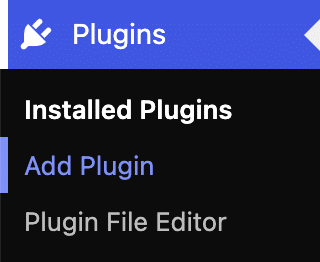 | Log in to your WordPress website and navigate to Plugins > Add Plugin > Upload Plugin > Install the zip file and activate it. Once activated, the plugin appears in Forms > Add-Ons > Installed and its settings live under Forms > Settings > Address Autocomplete. |
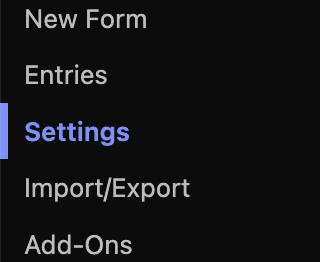 | On the left hand navigation, navigate to Forms > Settings > Address Autocomplete > License. Enter your license key and activate it. Next move on to the Google API key generation settings below. |
Generate and enter Google API key
Before you can use Address Autocomplete, you need to generate an API key in the Google Cloud Platform console.
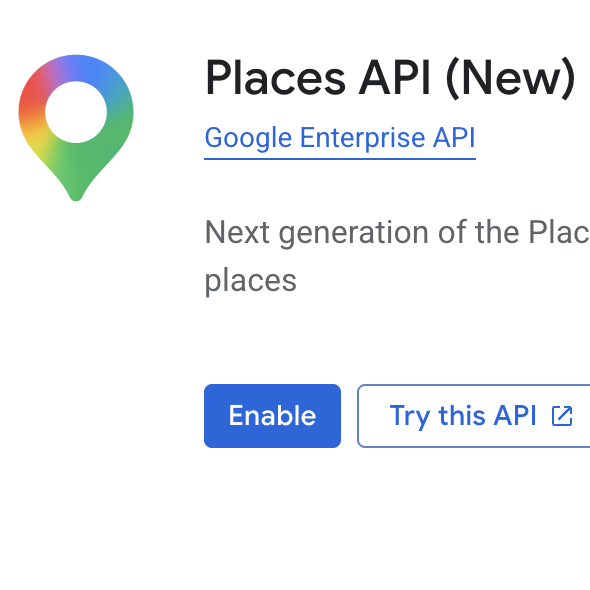 | Enable Google Places API (New) and Google Maps JavaScript API. See instructions |
 | Create and Restrict Google API key. See instructions |
 | Enter Google API Key. |
Enable on Address fields
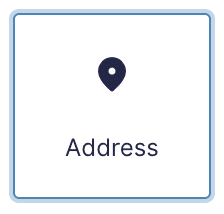 | Add an Address field to your form. |
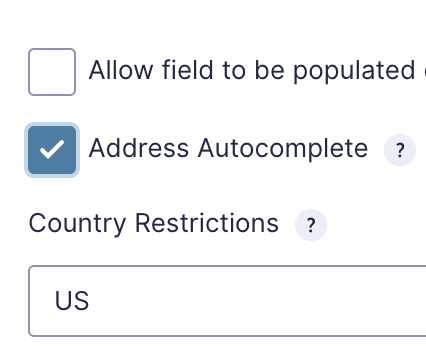 | Open the field’s settings, navigate to the Advanced section, and enable the Address Autocomplete checkbox. |
Enable on Single Line Text fields
 | Add a Single Line Text field to your form. |
| Open the field’s settings, navigate to the Advanced section, and enable the Address Autocomplete checkbox. |
Generating a Google API Key
Create or Select an Existing Google Cloud project
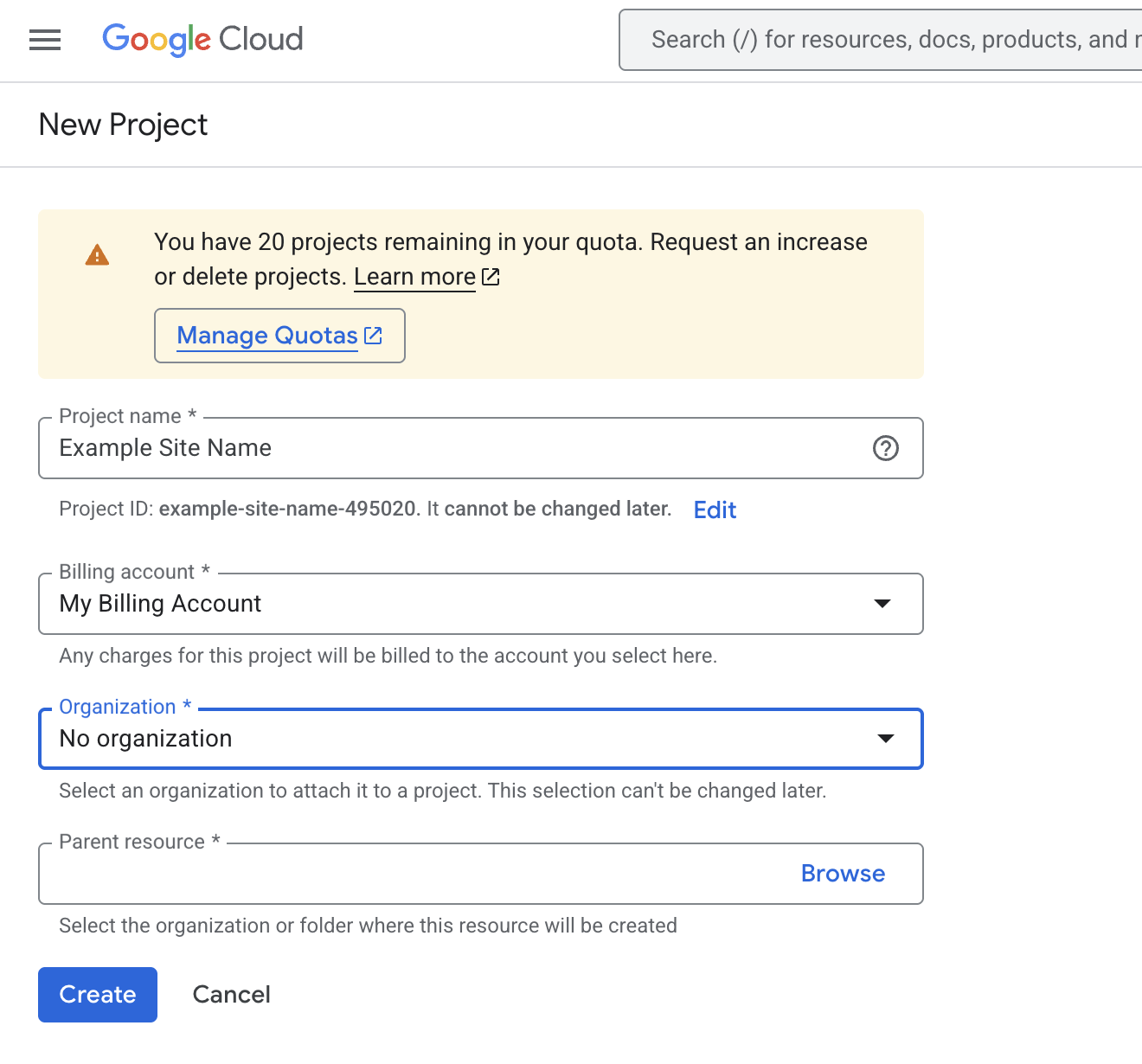
Before you can get your Google API key, you need to create a new Google Cloud Platform project (or select an existing one if you have it).
Note: If you’re creating a new GCP project we recommend you scope it for the website you’re working on, just in case you need other google api services for the same website.
Enable Required APIs
After you’ve created or selected a Google Cloud project, navigate to APIs & Services > API Library and enable the following APIs:
Note: Google requires a billing account to be linked to your project before enabling the Places API. For most sites the usage falls within Google’s free tier, but a payment method is still required.
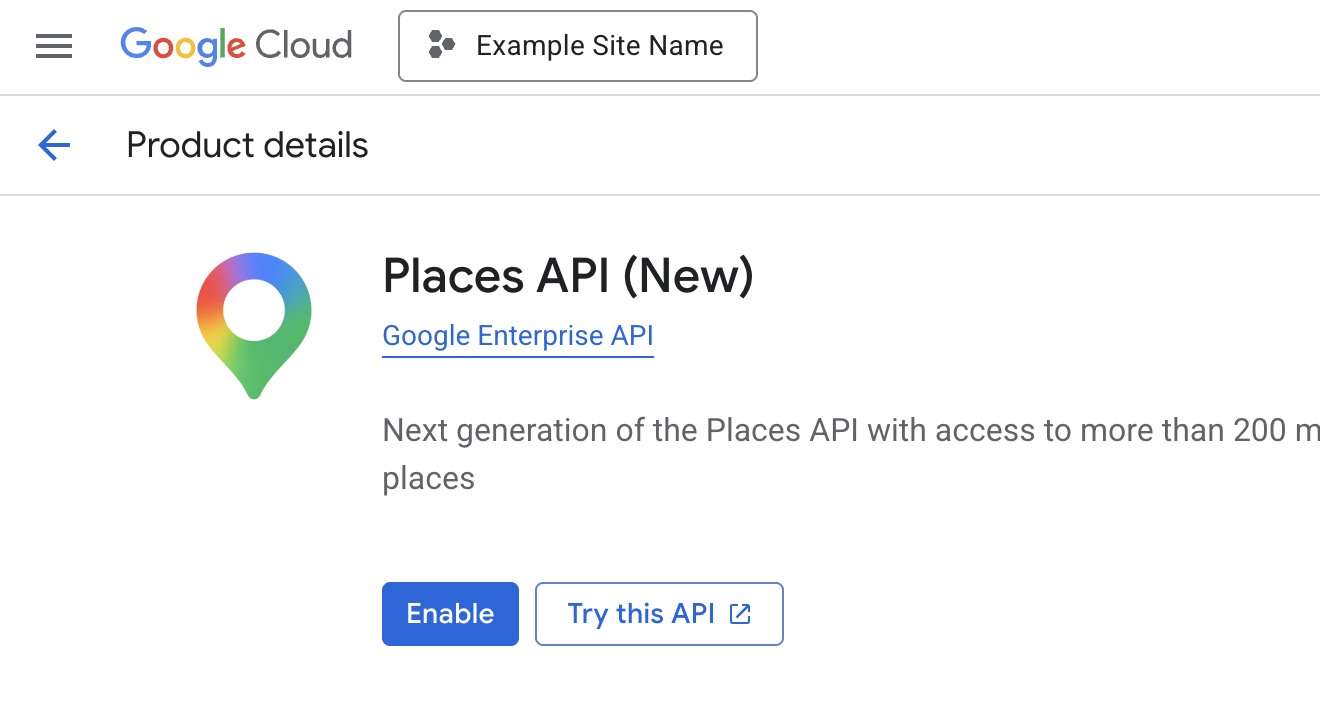
Places API (New)
You may notice a “Places API” and “Places API (New)” – Our plugin is built to be compatible with “Places API (New)”
Maps Javascript API
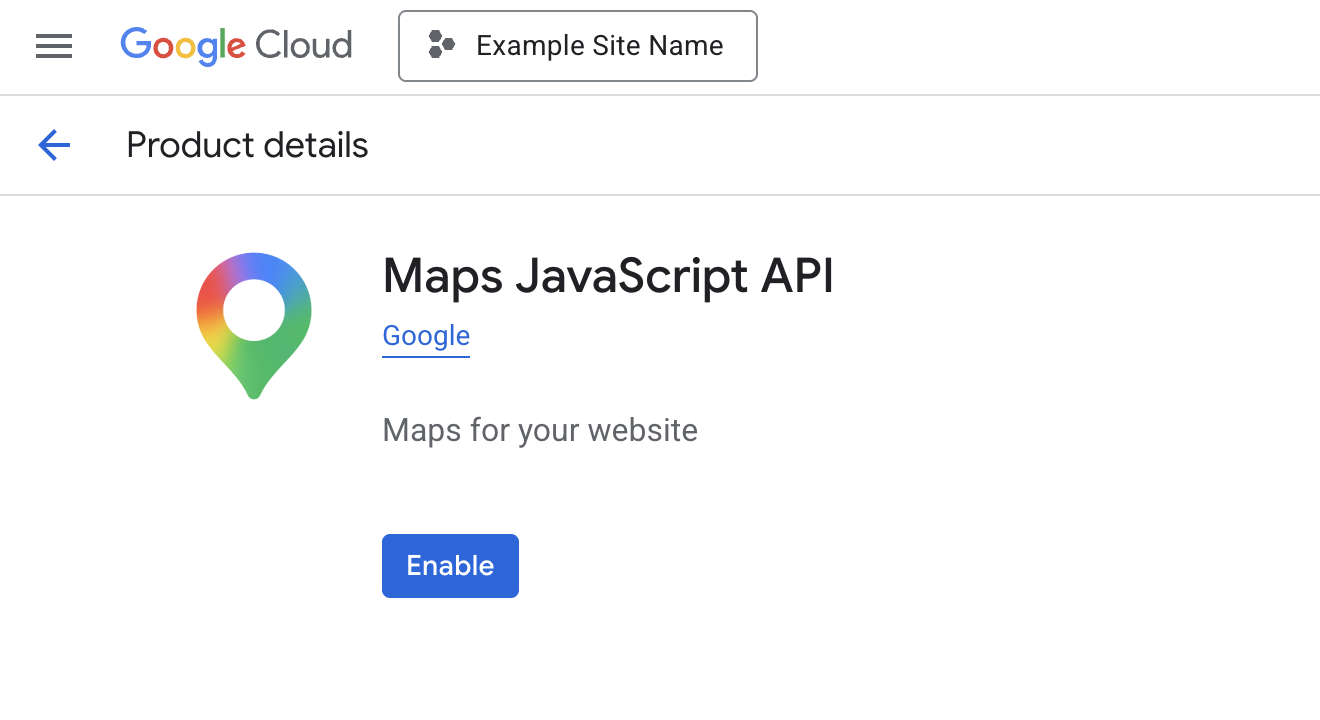
Generate Key
Now that you have both API’s enabled within your project, you can generate your API Key.
Go to APIs & Services > Credentials, then click “+ Create Credentials” and finally click “API key”
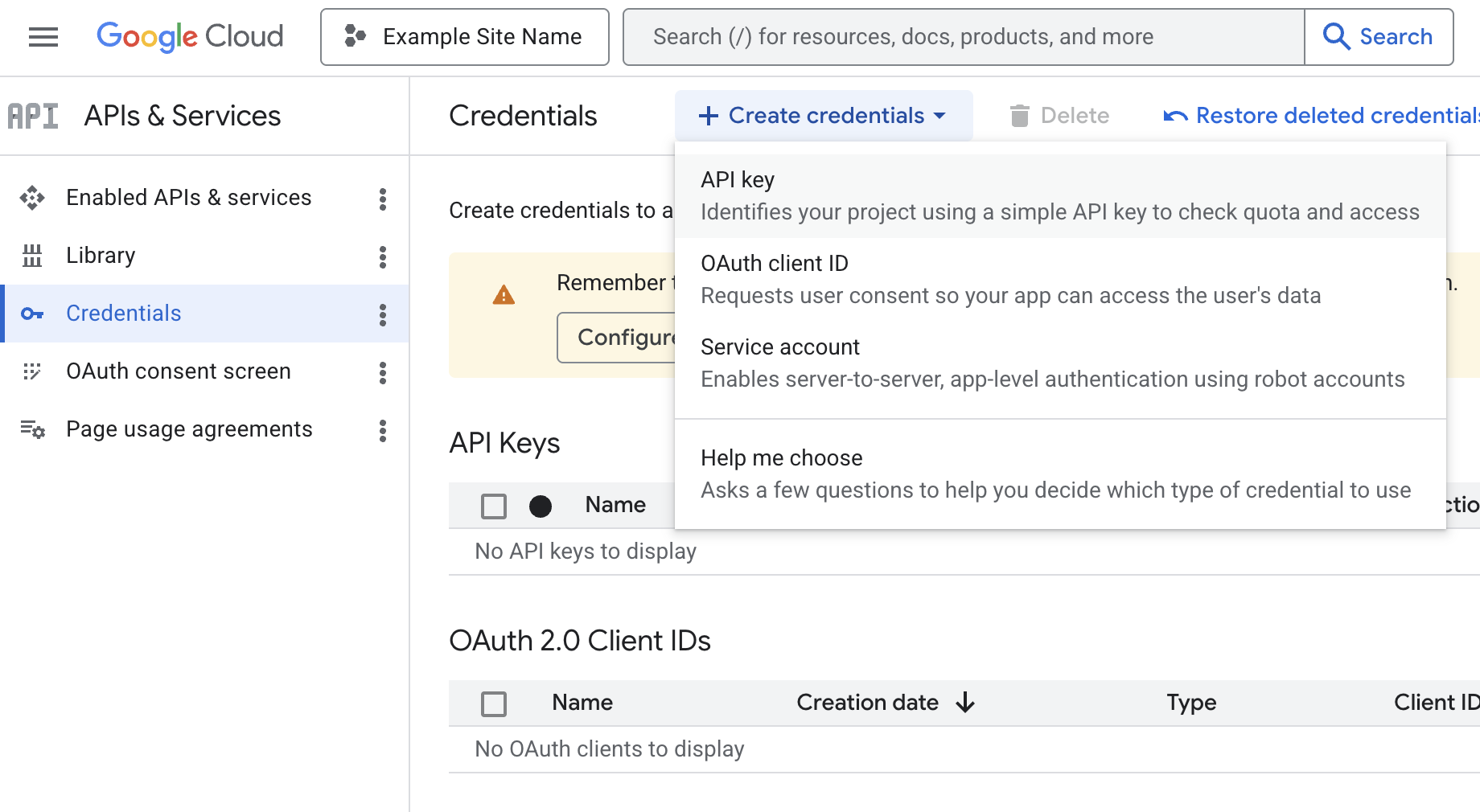
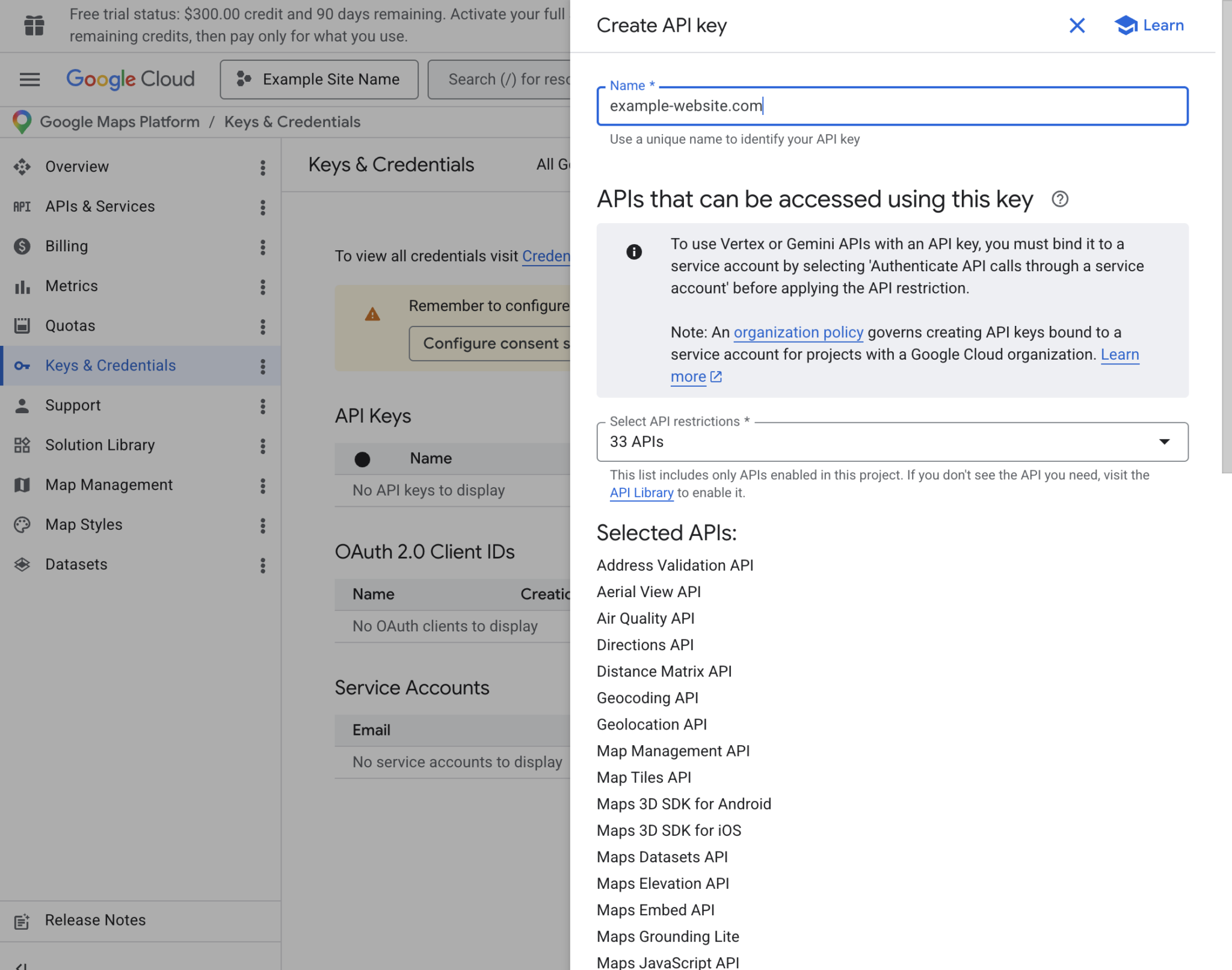
A side dialog window will slide out where you can name your key.
At this point, you could scroll down and click “Create” and your key will generate immediately, HOWEVER… you should set a restriction on it in the next step to prevent unauthorized use of your key.
Note: This is very important! Keys are viewable so you don’t want any bad actors stealing your free usage
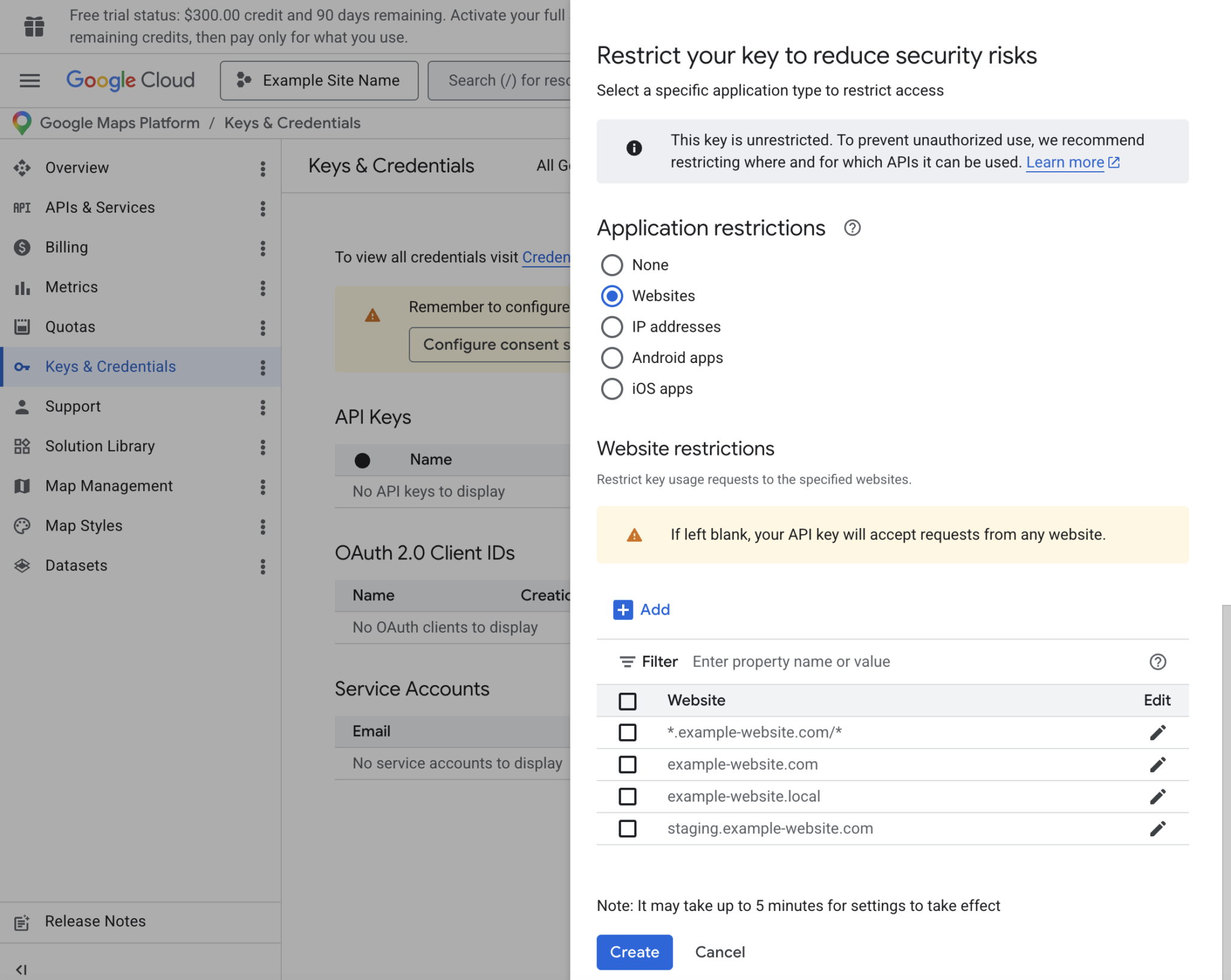
Continue scrolling to “Application restrictions” in the dialog window.
Under “Application restrictions” select “Websites”
Under “Website restrictions” add your websites where the api key should be used. Do not add https.
We recommend adding a wildcard domain in order to ensure the key works on www and non-www domains like so: *.example-website.com/*
Click create and your key will appear next.
Now your API key is created! Copy it, and paste it into the plugin’s Address Autocomplete settings and you’re all set!

Domain formatting: Enter each domain on its own line using the format example.com/* — no https://, no trailing slash on the domain itself, but include /* at the end to allow all pages. To cover all subdomains (like www), add a separate entry as *.example.com/*. For local development, use localhost or localhost:3000/* depending on your setup.
yourdomain.com/*
*.yourdomain.com/*
staging.yourdomain.com/*
localhost:8080/*
Google’s Terms of Service & Privacy Policy
Plugin Brewery Address Autocomplete sends form data to Google’s services to power address lookups. Per Google’s guidelines, any application using the Places API should display a link to Google’s Terms of Service and Privacy Policy.
Depending on your country or region, you may also be required to obtain user consent before collecting location data.
Feature Details
Field Types Supported
Works on both Gravity Forms field types:
- Address field (multi-input)
- Single Line Text (one-line address input)
Use Address fields when you want native GF address subfields, or Single Line Text when you want a simpler form layout.
Parsed Address Mapping (New)
Map selected address components into dedicated fields in your form:
- Address Line 1
- Address Line 2
- Postal / ZIP
- City / Town
- State / Province / Region
- Country
Great for hidden fields used in delivery-zone checks, CRM routing, conditional notifications, and automation.
ZIP / Postal Code Lookup (New)
Turn a Single Line Text field into a postal/ZIP code search. Enable Address Autocomplete, then switch on Postal Code Lookup in the field’s Advanced settings.
- Suggestions are limited to postal/ZIP codes
- The field keeps just the selected code (not the full address)
- City, State/Region (and Country/County if mapped) fill automatically, including into hidden fields
- Works for any country that has postal codes
Perfect for service-area checks, shipping logic, and sending clean location data to your CRM.
Single Line Text Postal/Zip Handling
For Single Line Text fields, the plugin uses Google’s formatted address and adds the postal/ZIP code when it’s available but missing from the displayed text. If Google doesn’t return a postal code for a result, one can’t be added.
Metadata Saved to Entry Meta
When users select a suggestion, the plugin stores:
- Place ID
- Latitude
- Longitude
- Formatted Address
Country Restrictions + International Support
You can restrict suggestions to specific countries with ISO alpha-2 codes (for example: US,CA,GB), or leave unrestricted for global forms.
Labels and mapping options are country-neutral, so workflows remain clear for US and non-US teams.
Performance + Compatibility
Designed for real-world production sites:
- Front-end scripts initialize only where enabled fields exist
- Works with standard and AJAX Gravity Forms flows
- Compatible with common caching/CDN setups in most configurations
Merge Tags
When a visitor selects an autocomplete suggestion, the plugin can store metadata on the entry. You can insert that data in confirmations, notifications, and other places that support Gravity Forms merge tags.
Format: {pb_aac:ID:KEY}
Replace ID with the field ID of the Address or Single Line Text field that has Address Autocomplete enabled (the same field where suggestions appear).
Available keys (KEY):
| KEY | What it outputs |
|---|---|
place_id | Google Place ID |
lat | Latitude |
lng | Longitude |
formatted | Formatted address (Google’s formatted string) |
google_maps_url | A Google Maps search URL built from Place ID (or lat/lng if Place ID is missing) |
Examples (if your autocomplete field is field 12):
{pb_aac:12:place_id}{pb_aac:12:lat}{pb_aac:12:lng}{pb_aac:12:formatted}{pb_aac:12:google_maps_url}
Picker: In the form editor, enabled fields also get these tags in the merge tag picker under labels like “Address Autocomplete: …”.
Note: Values only exist for entries where a suggestion was selected and the metadata was saved; otherwise the tag resolves empty (by design).
FAQs
Is the Google Places API free?
Google automatically applies a $200 monthly credit to your account, which your Places API usage is billed against. For most sites, this covers all costs — at current rates, roughly 10,000 autocomplete sessions per month fall within that credit.
That said, pricing can change, so check the Google Maps Platform Pricing Table for the latest numbers.
Can I use it with the “Single Line Text” field?
Yes! In addition to the standard Address field, you can enable autocomplete on any Single Line Text field. Ideal for forms that only need a single address input.
Does it work for international addresses?
Absolutely. The plugin supports global address data from Google.
Is setup complicated?
Not at all. Just add your Google API key in the plugin settings, enable autocomplete on your chosen fields, and you’re done. It’s that simple.
Can I restrict results to specific countries?
Yes. In the field settings, provide a comma-separated list of ISO 3166-1 alpha-2 country codes (e.g., US,CA,GB).
Which Places API do I enable in Google Cloud?
Enable “Places API (New)” since the legacy “Places API” is scheduled to be discontinued and the “Maps JavaScript API”.
Can I use address metadata in notifications or integrations?
Yes. Address Autocomplete adds merge tags for Place ID, latitude, longitude, formatted address, and a Google Maps URL. Use the Gravity Forms merge-tag picker in any notification, confirmation, or feed mapping.
Can developers customize what Google returns?
Yes. Use the pb_aac_request JavaScript filter to adjust the request — for example, biasing results to a region, adding a bounding box, or expanding to include businesses.
Can I use a field as a ZIP / postal code lookup?
Yes. On a Single Line Text field, enable Address Autocomplete and then turn on Postal Code Lookup. The field shows ZIP/postal suggestions, and selecting one fills your chosen City and State/Region fields (including hidden ones). Great for “check your area” style forms and CRM routing.