
What Does it Do?
Our Salesforce Integration for Gravity Forms plugin sends every form submission directly into Salesforce — as a Lead, Contact, Account, Opportunity, custom object, anything. No data exports, no Zapier middleman, no copy-paste.
It’s built to do the things every Salesforce admin actually needs: map fields once and forget about it, pull picklist values directly from Salesforce so dropdowns are always correct, deduplicate on email or external ID, attach file uploads to the record, and mirror entry edits and deletions into Salesforce automatically.
You can connect multiple Salesforce accounts to a single WordPress site (sandbox + production, agency client orgs, parent + subsidiary), prefill returning users with their existing Salesforce data via secure signed URLs, and see the result of every sync inside the Gravity Forms entry — with a one-click retry button when Salesforce hiccups.
Everything is stored on the entry. No data leaves your WordPress install except the payload going to Salesforce.
Main Features
Connect Salesforce (OAuth)
Modern OAuth 2.0 with PKCE — no static keys, no secrets in your wp-config. Click connect, authorize in Salesforce, and the plugin refreshes access tokens automatically. Refresh Token Rotation is supported, so the connection survives even with stricter Salesforce-side security policies enabled.
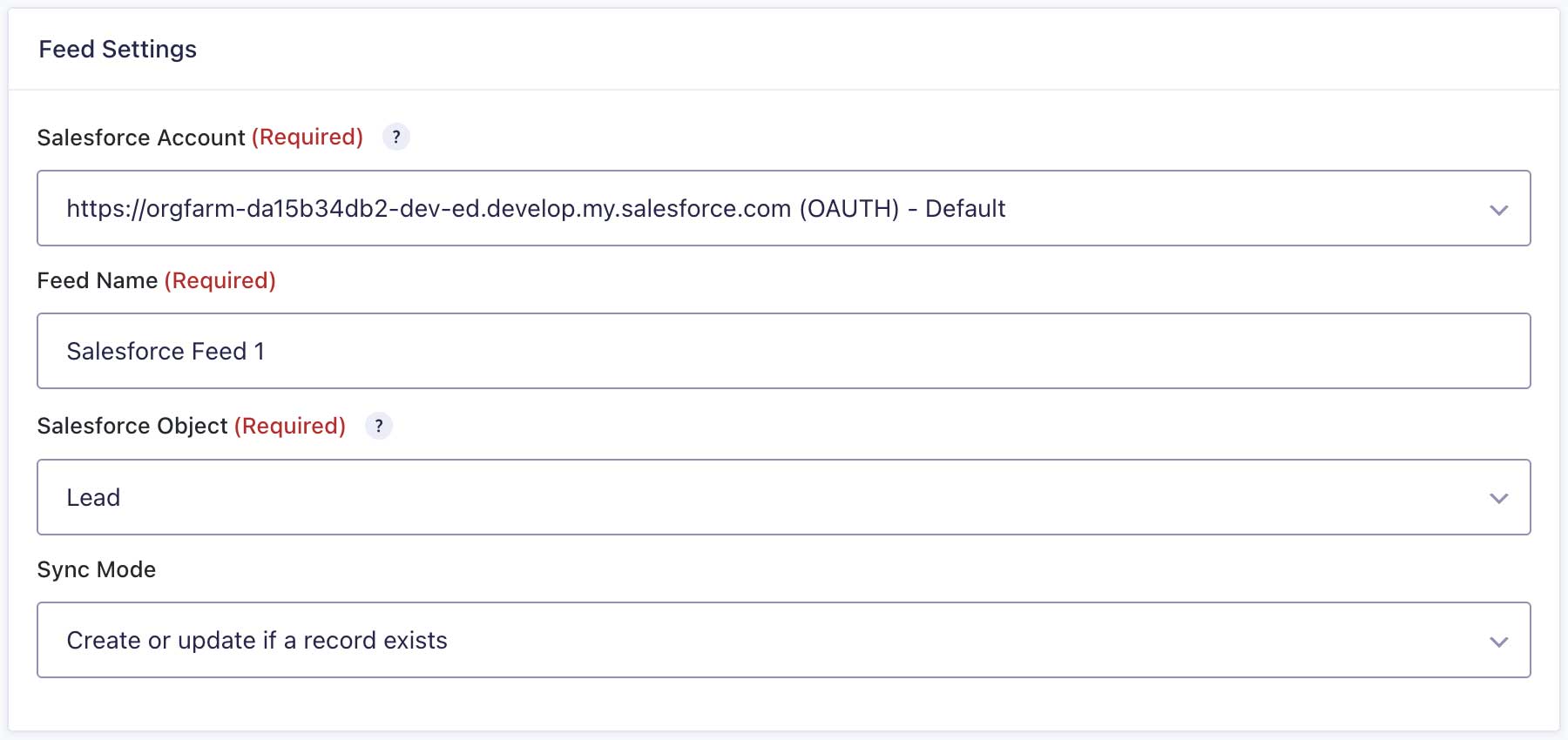
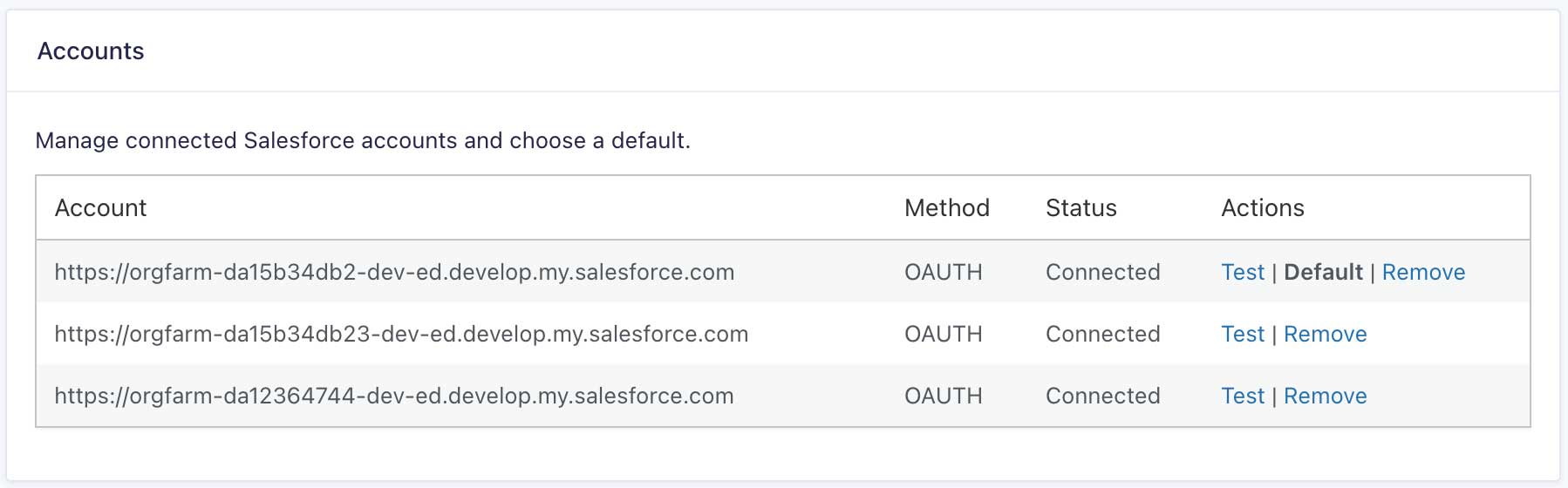
Multi-Account Support Connect as many Salesforce accounts as you want to a single WordPress site. Each feed independently picks which account it syncs to.
Field Mapping
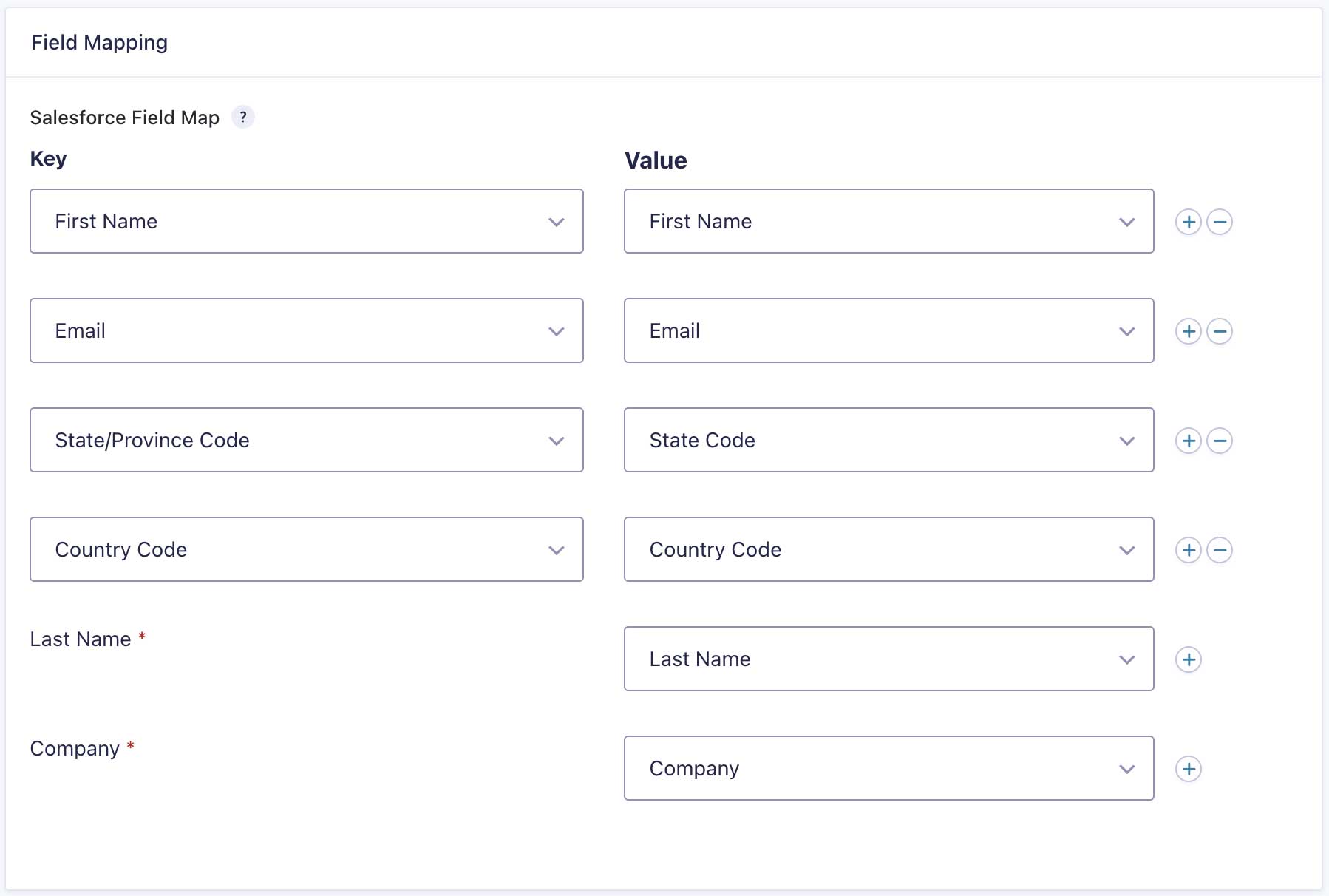
Map any Gravity Forms field to any Salesforce field on any object — Lead, Contact, Account, Opportunity, custom objects, anything your org has. Required Salesforce fields are flagged with an asterisk so you can’t miss them.
Picklist Mapping
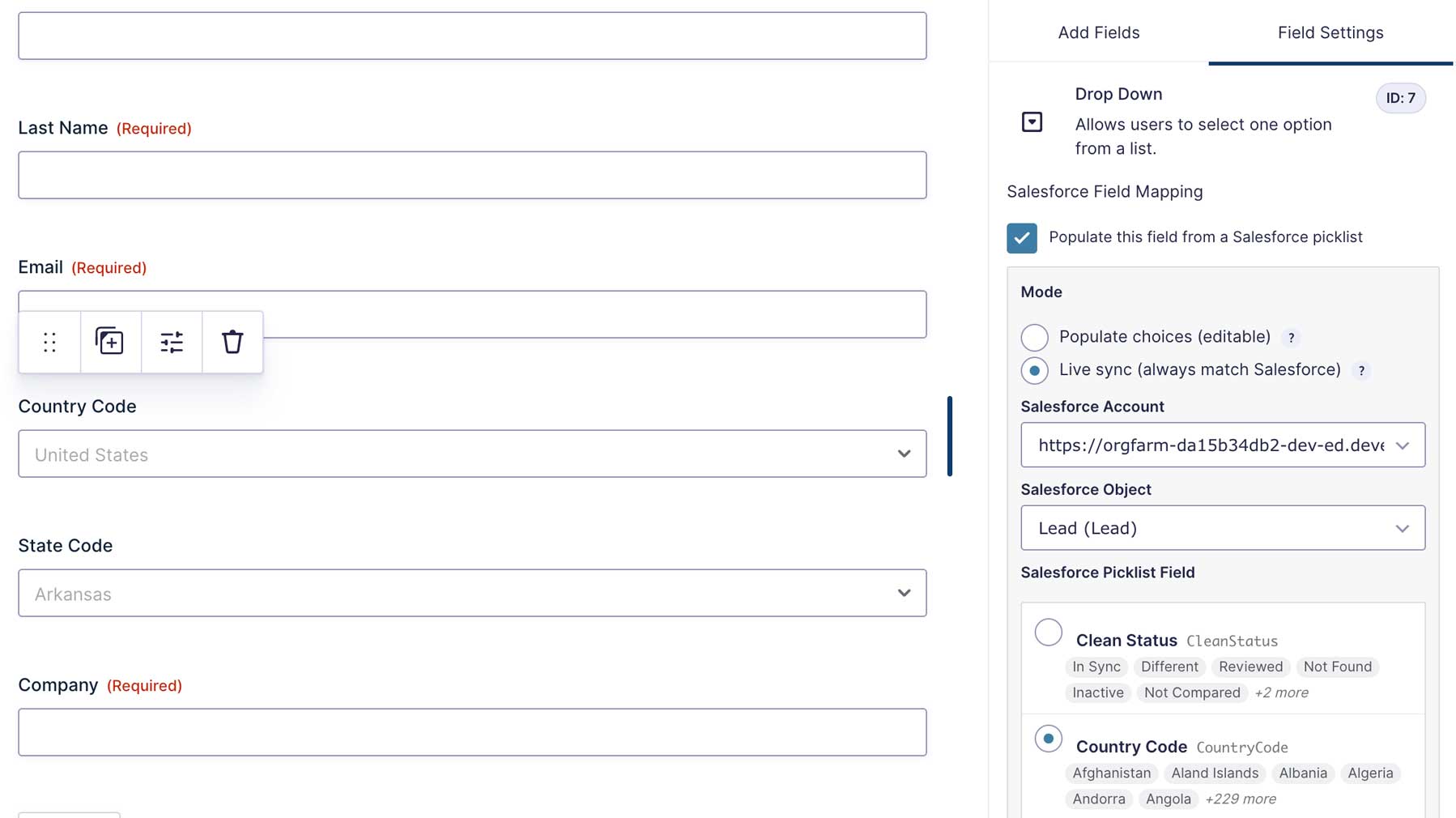
Pull Salesforce picklist values directly into your Gravity Forms dropdowns, multi-selects, radios, and checkboxes. Use Live Sync mode to refresh choices on every form render — your forms always match Salesforce.
Multiple Feeds per Form
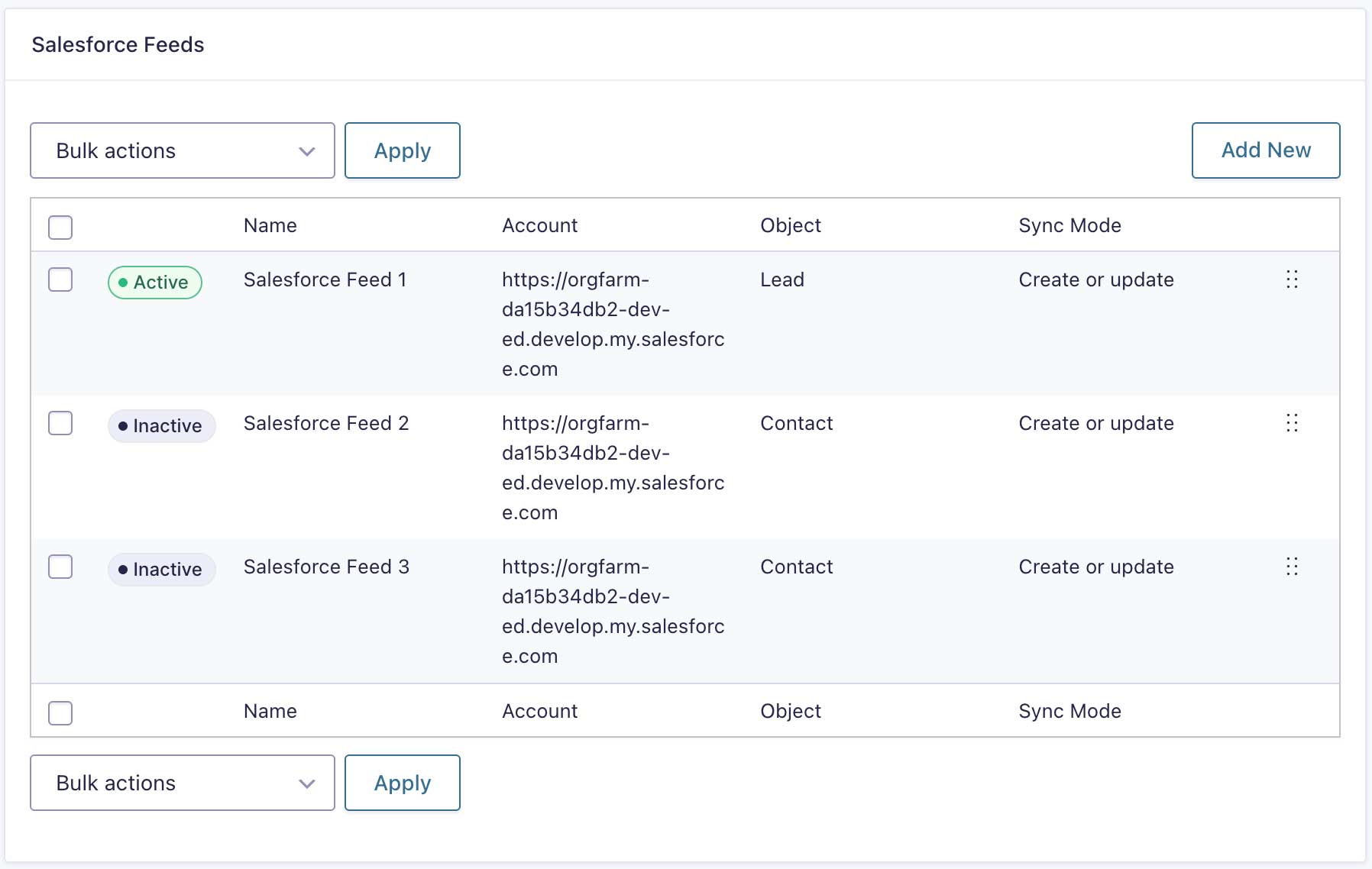
Run any number of feeds on a single form — send Leads to one Salesforce object, Contacts to another, custom objects to a third. Each feed has its own conditional logic, sync mode, and account.
Primary Key Matching
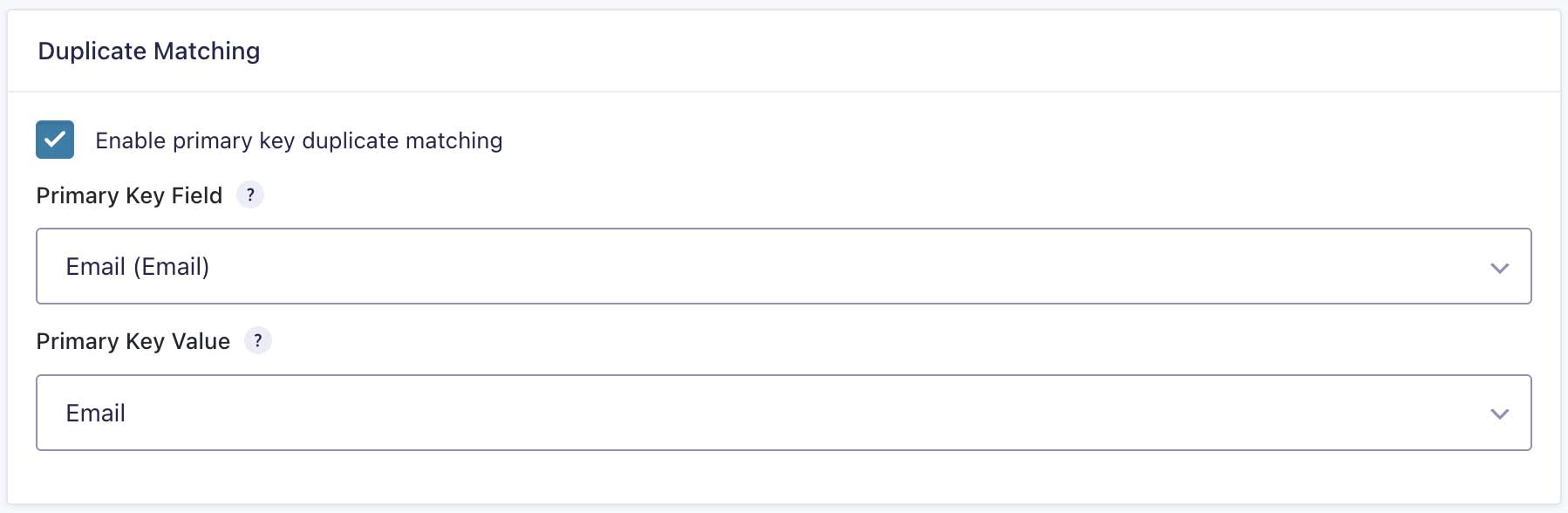
Match existing Salesforce records on Email, External ID, or any other unique field. Never accidentally duplicate a Lead again.
Per-Entry Salesforce Sidebar
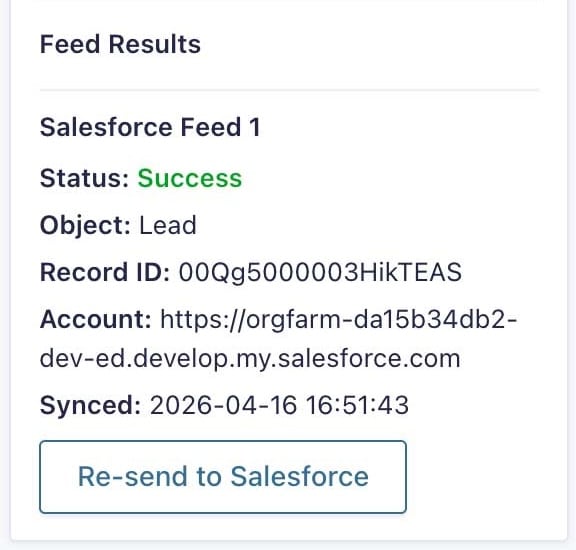
Every Gravity Forms entry shows live sync status — record ID (clickable, opens directly in Salesforce), account, sync timestamp, and per-feed breakdown. One-click Re-send to Salesforce retries the whole sync, including notes, files, and Campaign membership.
Sync Logs + CSV Export
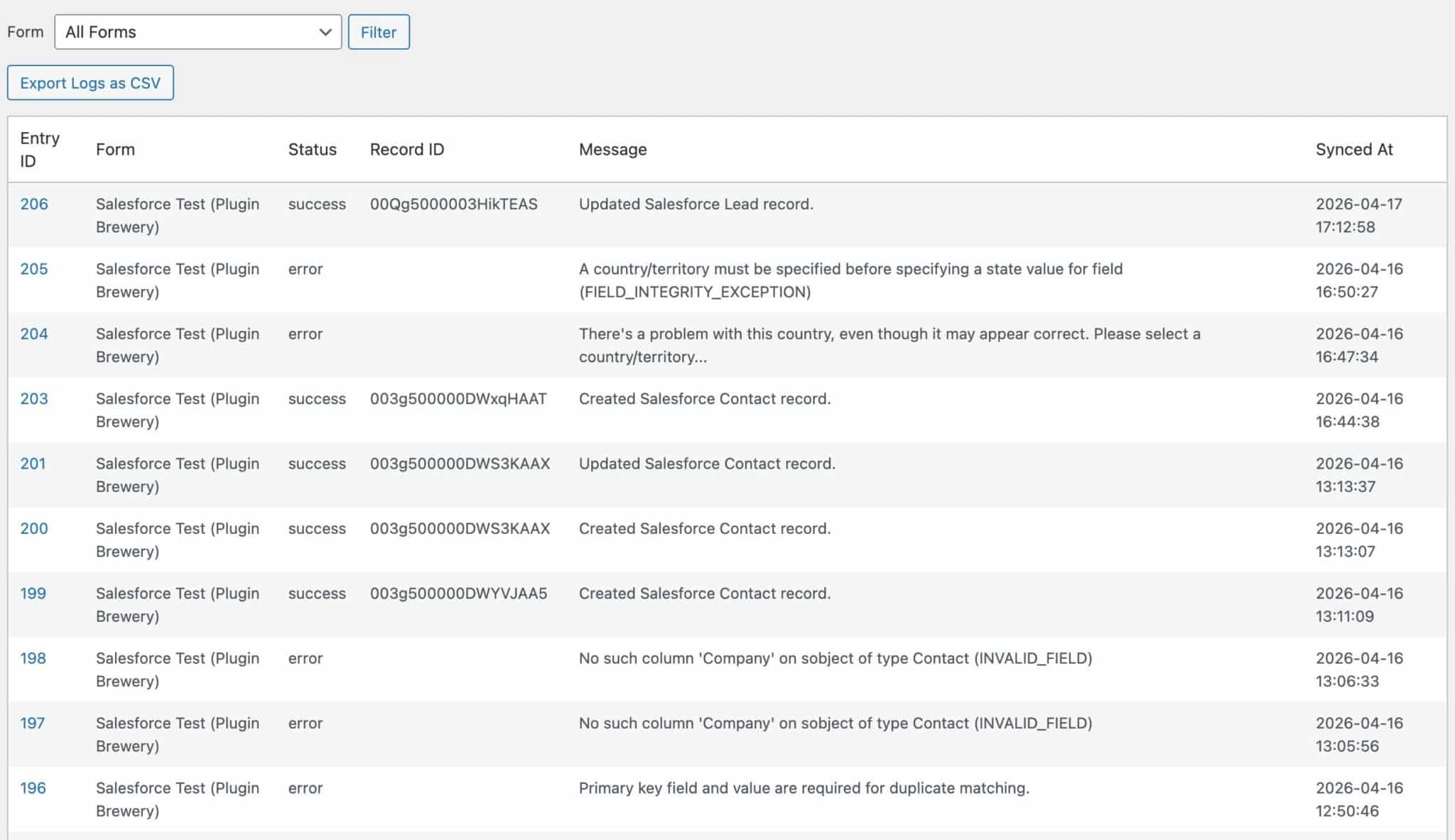
A dedicated Salesforce Logs page captures every sync attempt — success or failure — with full request/response context. Filter by form, paginate through history, or export the whole thing as a CSV for audits.
Prefill from Salesforce
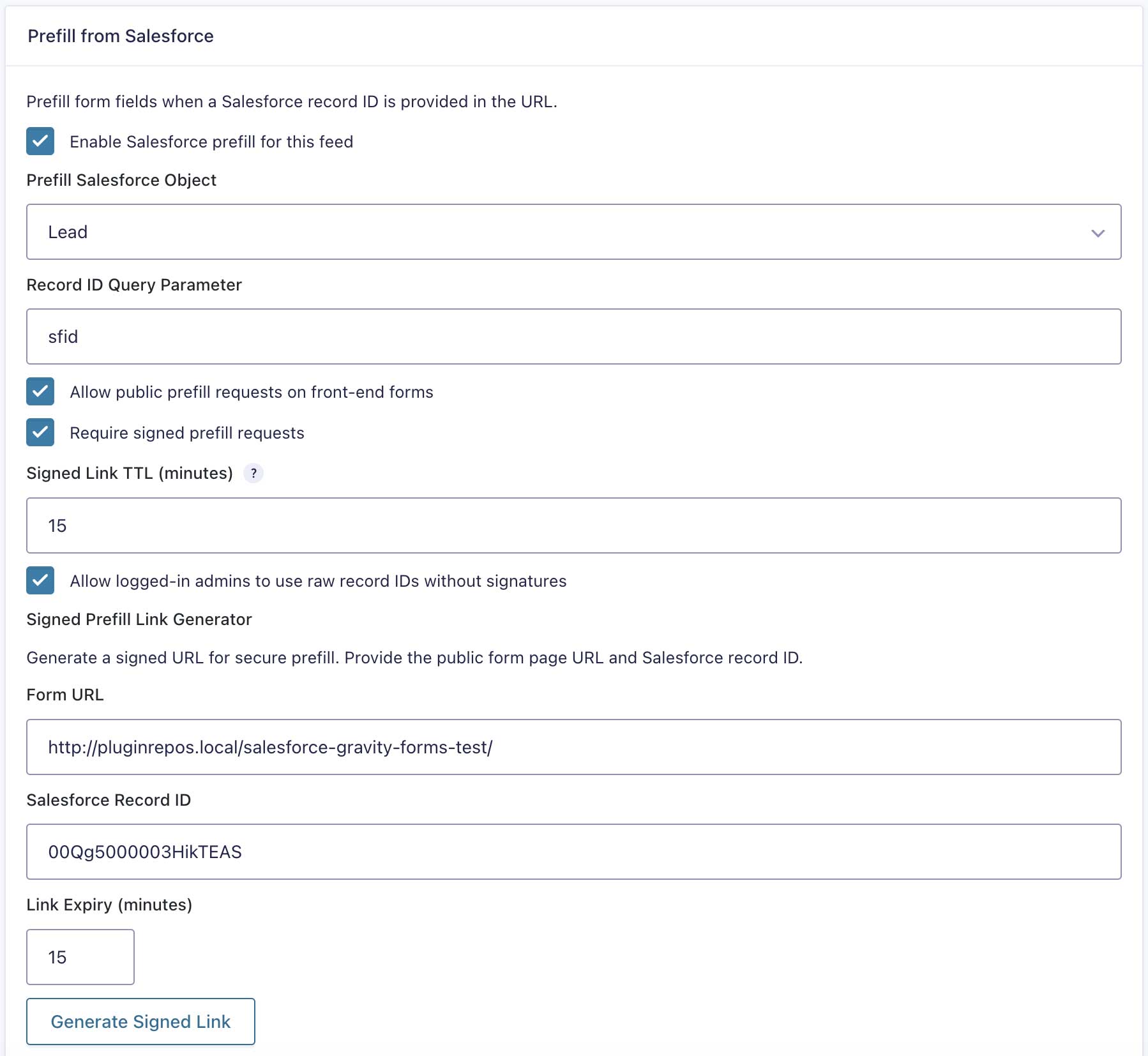
Send returning users a personalized form with their existing Salesforce data already filled in. HMAC-signed URLs with a TTL prevent record-ID enumeration on public forms — and the signed-link generator is built right into feed settings.
Additional Features
Connection & Setup
- Web-to-Lead/Case Org ID mode (for orgs without API access)
- Sandbox + production on the same site
- Per-account API version selection
- Connection test button per account
Mapping & Data Handling
- Sync to any Salesforce object — standard or custom (
My_Object__c) - Salesforce labels shown to form users, picklist values submitted (perfect for State/Country)
- Per-feed conditional logic (native Gravity Forms builder)
- Send form data as Salesforce Notes attached to the parent record
- Sync admin-added Gravity Forms entry notes to Salesforce
- Attach Gravity Forms file uploads as ContentVersion / ContentDocumentLink
- Auto-add new Leads or Contacts to a Salesforce Campaign (CampaignMember)
- Custom OwnerId per feed (supports merge tags)
Sforce-Auto-Assign: FALSEheader toggle to bypass assignment rules
Sync, Reliability & Notifications
- Email notifications when a sync fails
- Auto-recovery if a matched record was deleted in Salesforce (404 handling)
- Payment add-on aware — defer sync until payment confirms (Stripe, PayPal, etc.)
- Per-feed sync mode (Create or Update / Create only / Update only)
- Full Sync (Edit, Trash, Delete) — Edit an entry and the record updates, trash and the record stays put, permanently delete and the record is removed. Restoring from trash resumes sync automatically.
Output & Integration
- Merge tags
{salesforce_id},{salesforce_link}(and per-feed variants) for confirmations and notifications - Direct link to the Salesforce record from every entry’s sidebar
Platform & Developers
- WordPress Multisite compatible (Network Mode on Unlimited license)
- Translation-ready
pb_gfsf_payloadfilter for developer customization with full sync context
Documentation
How do I enable the plugin?
After purchasing, you’ll need to install the plugin on your WordPress website. Here’s how.
Step 1: Installation
Log in to your WordPress site and navigate to Plugins → Add Plugin → Upload Plugin. Upload the zip file and activate it.
Step 2: Register the Plugin
On the left-hand navigation, navigate to Forms → Settings → Salesforce. Enter your license key and activate it.
Step 3: Connect Salesforce
Once licensed, head to the Accounts tab on the same Salesforce settings page and connect your first Salesforce account (full instructions below).
That’s it! You’re ready to start mapping forms to Salesforce.
How do I connect a Salesforce account with OAuth?
Step 1: Create an OAuth integration in Salesforce
In Salesforce you’ll create either an External Client App (the modern option, and the only one available for new orgs created since Salesforce’s Spring ’26 release) or a Connected App (the legacy option, still supported on existing orgs that allow it). The plugin works identically with both.
Navigate to one of the following in Salesforce Setup:
- Setup → External Client App Manager → New External Client App (recommended), or
- Setup → App Manager → New Connected App (legacy — disabled by default on newer orgs)
Enable OAuth Settings and configure:
- Callback URL: paste the value shown on the plugin’s Salesforce settings page
- OAuth Scopes: add both
- Manage user data via APIs (api)
- Perform requests at any time (refresh_token, offline_access)
- Flow Enablement (External Client Apps only): enable Authorization Code and Credentials Flow
- Require Proof Key for Code Exchange (PKCE): enabled (recommended)
Save the app. For External Client Apps, Salesforce may take a minute to finish provisioning — refresh, then copy the Consumer Key (Client ID) and Consumer Secret (Client Secret). You’ll be emailed a verification code when revealing the secret for the first time.
Step 2: Paste credentials into WordPress
In WordPress, go to Forms → Settings → Salesforce. Paste the Client ID and Client Secret. Set the Login URL to:
https://login.salesforce.comfor productionhttps://test.salesforce.comfor sandbox
Step 3: Authorize
Click Connect Account. You’ll be redirected to Salesforce to grant access, then back to WordPress where the connection is confirmed.
Step 4 (optional): Add additional accounts
Repeat the process for each additional Salesforce account. Each feed independently picks which account it syncs to. One account is marked as the default.
How do I connect with Org ID? (Web-to-Lead / Web-to-Case)
If your Salesforce org doesn’t have API access (some Essentials/Professional editions), you can fall back to the legacy Web-to-Lead / Web-to-Case endpoint.
Step 1: In Salesforce, find your Organization ID under Setup → Company Information.
Step 2: In WordPress, on the Salesforce settings page, switch the Connection Method dropdown to “Org ID”.
Step 3: Paste your Org ID and click Save Org ID Account.
Heads-up: Org ID mode only supports Lead and Case. Updates, deletes, file uploads, prefill, and picklist mapping require an OAuth account.
How do I set up a feed?
Step 1: Edit a form → Form Settings → Salesforce → Add New.
Step 2: Pick the Salesforce Account, Object (Lead, Contact, Account, custom object…), and Sync Mode (Create or Update is recommended for most cases).
Step 3: Map your Gravity Forms fields to Salesforce fields. Required Salesforce fields are marked with an asterisk so you can’t miss them.
Step 4 (optional): Enable Primary Key matching to update existing records based on Email, External ID, or any unique field.
Step 5 (optional): Configure conditional logic, owner assignment, file uploads, notes, or campaign membership.
Step 6: Save the feed and submit a test entry. Check the entry detail screen for the Salesforce sidebar — you’ll see the new record’s ID and a direct link to it in Salesforce.
Feature Details
Connection Methods
The plugin supports two ways to connect Gravity Forms to Salesforce — pick the one that matches your org’s API access level.
- OAuth 2.0 with PKCE (recommended) — Modern Salesforce authentication using a Connected App or External Client App (the Spring ’26+ replacement). No static API keys live on your server, the plugin refreshes access tokens automatically, and the connection stays alive indefinitely as long as the app’s refresh token policy doesn’t expire it. Required scopes:
apiandrefresh_token/offline_access. Works with all Salesforce editions that have API access (Enterprise, Unlimited, Performance, Developer). - Web-to-Lead / Web-to-Case (Org ID) — Legacy submission endpoint that uses just your Salesforce Organization ID. Useful for orgs without API access (some Essentials and Professional editions). Limitations: Lead and Case objects only, no updates, no deletes, no file uploads, no prefill, no picklist mapping.
Both modes can be used on the same WordPress site. You can have an OAuth account for your main org and an Org ID account for a side org, and each feed independently picks which one it syncs to.
Multi-Account Support
Connect as many Salesforce accounts as you want to one WordPress site. Common setups:
- Sandbox + production — test feeds against sandbox, then switch to production with one dropdown change.
- Agency — each client org gets its own connection; each feed picks which client it syncs to.
- Parent + subsidiaries — different forms route to different orgs in your corporate structure.
One account is always marked as the default so simple sites never have to think about which account to use.
Salesforce Objects Supported
You can sync to any Salesforce object the connected user can access — standard or custom. The Object dropdown is built dynamically from your org’s actual schema, so you’ll see every standard object Salesforce ships with (Account, Contact, Lead, Opportunity, Case, Campaign, Task, Event, Note, User, and many more) plus every custom object you’ve defined.
For custom objects, choose “Custom (type below)” and enter the API name (e.g., My_Object__c). Picklist values, lookup relationships, file attachments, and prefill all work the same way against custom objects as standard ones.
Field-Level Picklist Mapping (the flagship feature)
For Drop Down, Multi Select, Radio Button, and Checkbox fields, you can pull choices directly from a Salesforce picklist instead of typing them manually. Two modes per field:
- Populate choices (editable) — copies the picklist values into the Gravity Forms field once. The admin can edit or remove choices afterwards. Good for “I want a starting point but might prune the list.”
- Live Sync (always match Salesforce) — refreshes the choices on every form render. Choices are locked in the form editor to prevent drift. Use this when Salesforce is the single source of truth (status fields, lead sources, State/Country picklists, etc.).
Salesforce labels are shown to form users; Salesforce values are submitted. So the form shows “California” but the entry submits CA — exactly what Salesforce State/Country picklists expect. No mapping table needed.
The Salesforce Object dropdown in the field-mapping sidebar pins the eight most-used standard objects (Account, Contact, Lead, Opportunity, Case, Campaign, Task, Note) at the top of the list, so you don’t have to scroll past every custom object in the org to find them.
Primary Key Matching (no duplicates)
Most Salesforce admins don’t want every form submission to create a new Lead. Enable Primary Key matching to update existing records when there’s a match.
- Pick any filterable, idLookup, or externalId field as the match key (Email is the most common).
- If a matching record is found, it’s updated. If not, a new record is created (in “Create or Update” mode).
- Use a custom external ID (
Customer_Reference__c) for matching across systems. - Built-in protection against the “matched record was deleted in Salesforce” race condition — if Salesforce returns 404 for a stored ID, the plugin transparently creates a fresh record.
File Uploads
Gravity Forms file upload fields can be attached to the Salesforce record as ContentVersion / ContentDocumentLink, so they show up in the record’s Files related list. Configurable max file size (1–25 MB per file).
Notes Sync
Push form data into a Salesforce Note attached to the parent record. The note body supports merge tags so you can format it however you like.
Optionally, sync admin-added Gravity Forms entry notes to Salesforce as Notes too — useful for keeping the conversation history in one place.
Campaign Membership
Add the Lead or Contact created by the form to a Salesforce Campaign in one checkbox. The plugin creates a CampaignMember record linking the new Lead/Contact to the Campaign.
Owner Assignment
Per-feed:
- Set a custom OwnerId (supports merge tags, so you can route based on form values).
- Toggle the
Sforce-Auto-Assign: FALSEheader to bypass standard assignment rules when needed.
Prefill from Salesforce
Send returning users a personalized form — renewal forms, account update forms, profile completion flows — prefilled with their existing Salesforce data.
- Map any Salesforce field to any Gravity Forms field for prefill.
- HMAC-signed URLs with TTL prevent record-ID enumeration on public forms. Without signatures, anyone could iterate
?sfid=001000...and pull data they shouldn’t have. - The Signed Prefill Link Generator is built into feed settings — paste a record ID, get a signed URL with an expiration. Use it in marketing emails, customer portals, or self-service flows.
- Logged-in admins can use raw record IDs without signatures for testing.
- Per-feed query parameter (default
?sfid=) keeps URLs clean.
Entry Lifecycle Sync
Most form-to-CRM plugins are one-way. This one mirrors the full lifecycle.
- Edit an entry → the Salesforce record is updated automatically (
gform_after_update_entry). - Trash an entry → the Salesforce record is left untouched (trash is reversible in WordPress, so the record stays put).
- Restore from trash → Salesforce sync resumes automatically. If the record was manually deleted in Salesforce while the entry was in trash, a fresh replacement is created.
- Permanently delete an entry (empty trash, “Delete forever”) → the Salesforce record is deleted, but only if you’ve enabled “Delete Salesforce records when entries are permanently deleted” in plugin settings.
Payment Add-on Aware
If your form takes a payment via a Gravity Forms payment add-on (Stripe, PayPal Standard, PayPal Commerce, Authorize.Net, Square, 2Checkout, Mollie, etc.), enable “Process Salesforce feed only when payment is received” in feed settings to defer the Salesforce sync until the payment confirms successfully. No half-baked Leads from abandoned checkouts.
At submission, the Salesforce sync is held back if the entry has a pending payment. When the payment add-on confirms the transaction (via Gravity Forms’ standard delayed-feeds framework), the Salesforce sync runs as normal. If the payment fails or is abandoned, the sync simply never runs.
Works with any payment add-on built on Gravity Forms’ standard payment add-on framework — which is all the official ones.
Logs & CSV Export
Every Salesforce sync — successful or failed — is logged with full request/response context. The Salesforce Logs page (Forms → Salesforce Logs) shows:
- Timestamp, form, entry ID, feed, status, message
- Per-form filter and pagination
- CSV export of all sync activity
For high-volume sites, you can disable per-entry log meta storage to keep wp_gf_entry_meta lean while still getting the global log.
Email Notifications on Sync Failure
Get pinged the moment Salesforce rejects a payload, with the entry ID and the exact error message Salesforce returned. Set the recipient address once in the plugin’s Salesforce settings (defaults to your WordPress admin email if left blank).
Useful for catching:
- A required Salesforce field that suddenly went un-mapped (someone edited the form)
- A picklist value that no longer exists in Salesforce
- API limits, validation rules, or workflow rules rejecting the record
- A Connected App that needs re-authorization
Fix the issue, hit Re-send to Salesforce on the affected entries, and you’re back in business — instead of finding out two weeks later that 30 leads never made it into the CRM.
Per-Entry Salesforce Sidebar
Every Gravity Forms entry detail screen shows a dedicated Salesforce sidebar box with the live status of the sync:
- Status — color-coded (green Success, red Error, gray Skipped or Deleted)
- Object — what Salesforce object was created (Lead, Contact, custom object, etc.)
- Record ID — clickable, opens directly in Salesforce in a new tab
- Account — which connected Salesforce account handled the sync (useful when you have multiple)
- Synced at — timestamp of the most recent sync attempt
- Error message — the exact error Salesforce returned, when applicable
- Per-feed breakdown — when multiple feeds run on the same form, each feed’s status is shown separately
It’s the fastest way to confirm a form is actually pushing data into Salesforce — and to spot the exact entry that failed when something goes wrong.
Re-send to Salesforce
Every entry has a Re-send to Salesforce button on the entry detail screen. It’s not just a “resync the main record” button — it clears the side-effect deduplication flags so notes, files, and campaign memberships retry too. Use it when:
- Salesforce was down when the original sync ran
- You fixed a feed mapping after a batch of failed submissions
- You want to push test data to a sandbox without re-submitting the form
Merge Tags
{salesforce_id} — the Salesforce record ID created or updated by the most recent feed for this entry.
{salesforce_id:FEED_ID} — the Salesforce record ID created by a specific feed (use this when multiple feeds run on the same form).
{salesforce_link} — a direct link to the Salesforce record (uses the connected account’s instance URL, e.g., https://yourorg.lightning.force.com/lightning/r/Lead/00Q.../view).
{salesforce_link:FEED_ID} — a direct link to the record created by a specific feed. Useful when a form has multiple feeds writing to different Salesforce orgs (e.g., one feed to sandbox, one to production) — each variant correctly uses that feed’s account’s instance URL.
Drop these into confirmations, notifications, webhooks, or anywhere else Gravity Forms supports merge tags. Common uses:
- Confirmation message: “Thanks! Your reference number is {salesforce_id}.”
- Admin notification: “New lead in Salesforce → {salesforce_link}”
- Webhook payload: pass
{salesforce_id}to a downstream system.
Translations
This plugin is fully translation-ready. You can translate it into any language using the free Loco Translate plugin or any other WordPress translation tool.
Default language: English (en_US)
FAQs
Does this require Gravity Forms?
Yes. Gravity Forms 2.7 or later must be installed and active. This is an add-on for Gravity Forms — it doesn’t work on its own.
What WordPress and PHP versions are supported?
WordPress 6.5+ and PHP 8.0+. Tested up to WordPress 7.0.
Can I connect to a Salesforce Sandbox?
Yes. Use https://test.salesforce.com as your Login URL when connecting the account. You can have a sandbox account and a production account connected to the same WordPress site at the same time.
Does this support multiple Salesforce accounts on one site?
Yes. Connect as many accounts as you want. Each feed picks which account it syncs to. Common use cases: sandbox + production, agency client orgs, or parent + subsidiary corporate structures.
Can I sync to custom Salesforce objects?
Yes. In the feed’s Salesforce Object dropdown, choose “Custom (type below)” and enter the API name of your custom object (e.g., My_Object__c). Picklists, file uploads, lookups, and prefill all work the same way against custom objects.
Does this work with Salesforce Pardot (Account Engagement)?
For that you’d need a dedicated Pardot integration. If you have a regular Salesforce + Pardot setup with the Connector enabled, this plugin will work end-to-end with your Pardot workflows. What this plugin does not do: write directly to Pardot Prospects or Pardot Lists, bypass Salesforce, or interact with Pardot-specific objects (Custom Redirects, Pardot Forms, etc.).
How does picklist mapping handle State and Country fields with codes?
The plugin shows the Salesforce label to the form user (e.g., “California”) but submits the picklist value (e.g., CA) — exactly what Salesforce State/Country picklists require. No translation table needed on your end.
What’s the difference between Populate and Live Sync mode for picklists?
- Populate copies the Salesforce picklist values into your form field once. After that, you can edit, prune, or rearrange the choices. Good when you want a starting point but might curate the list.
- Live Sync refreshes the choices on every form render so they always match Salesforce exactly. The form editor locks the choices to prevent accidental drift. Good when Salesforce is the single source of truth (status fields, lead sources, country lists, etc.).
Can I avoid creating duplicate records?
Yes. Enable Primary Key matching in feed settings and pick a unique field (Email is the most common, or any custom external ID). The feed will update an existing record when there’s a match, and create a new one when there isn’t.
Can I prefill a form with existing Salesforce data?
Yes. Enable Prefill from Salesforce in a feed and map the Salesforce fields you want pulled in. Then send users a URL like ?sfid=001XXXXXXXXXXXX. For public forms, use the built-in Signed Prefill Link Generator to create secure, time-limited URLs you can include in email campaigns or self-service flows.
What happens if I trash an entry, then restore it?
The Salesforce record is preserved through the trash/restore cycle. Only permanent deletion removes the Salesforce record (and only if you’ve enabled that option in plugin settings). This matches WordPress’s native behavior — trash is reversible, delete-forever is not.
Can I retry a failed sync?
Yes. Open the entry detail screen and click Re-send to Salesforce. It clears the side-effect dedup flags too, so notes, files, and campaign memberships retry along with the main record.
Does this work with payment add-ons (Stripe, PayPal, etc.)?
Yes. Each feed has a “Process Salesforce feed only when payment is received” option that defers the Salesforce sync until the payment add-on confirms a successful transaction. No half-baked Leads from abandoned checkouts.
Does this support file uploads from Gravity Forms?
Yes. Gravity Forms file upload fields can be attached to the Salesforce record as ContentVersion / ContentDocumentLink — they show up in the record’s Files related list. Configurable max file size (1–25 MB per file).
How do I customize the Salesforce payload programmatically?
Use the pb_gfsf_payload filter:
add_filter( 'pb_gfsf_payload', function ( $payload, $context ) {
    // $context['feed'], ['entry'], ['form'], ['object'], ['account_id'], ['method']
    return $payload;
}, 10, 2 );
The full feed, entry, form, target object, account ID, and HTTP method are available in $context so you can make decisions based on any of them.
What if my Salesforce org doesn’t have API access?
Use Org ID mode. It uses Salesforce’s legacy Web-to-Lead / Web-to-Case endpoint instead of the REST API. Limitations: only Lead and Case objects are supported, and you don’t get updates, deletes, file uploads, prefill, or picklist mapping. For most production setups, OAuth (the default) is the right choice.
What Salesforce OAuth policies does the plugin support?
The plugin uses OAuth 2.0 Authorization Code flow with PKCE and supports Refresh Token Rotation, so you can enable both on your Connected App or External Client App without breaking the connection. The only Refresh Token Policy that’s incompatible is “Immediately expire refresh token”, which forces a full re-authorization on every access token expiry and isn’t compatible with any unattended integration.
How does the OAuth connection stay logged in?
The plugin uses OAuth 2.0 with PKCE and refreshes the access token automatically using the refresh token. As long as the Connected App or External Client App’s refresh token policy doesn’t expire it (the default ‘valid until revoked’ policy is what you want), the connection stays alive indefinitely. Refresh Token Rotation is supported, so security-conscious admins can enable that policy too.
Is the data deleted when I uninstall the plugin?
Only if you opt in. Enable “Delete all plugin data when uninstalling” in plugin settings before uninstalling. By default, your sync logs and connection settings are preserved (so you don’t lose history if you reactivate later).
Does it work with caching/CDNs?
Yes. The plugin runs entirely server-side at form submission, so caching and CDN setups don’t interfere with Salesforce syncing. The form-editor JS only loads inside the WordPress admin (where caching is typically disabled anyway).
Does this work with a WordPress Multisite network?
TL;DR
- Unlimited license: enable Network Mode once; one key can manage every subsite’s settings + support.
- Network-activated: all subsites can run Salesforce feeds and receive updates right away.
- Limited plan / no subsite license: the plugin runs, but subsite settings are read-only.
- Support follows the license: sites covered by the active key are eligible.
If you have an Unlimited license, you can enable Network Mode from the main site and push that single key to every subsite in one batch (with live progress). Those subsites inherit the license-managed settings and support automatically.
Hooks
Filters
pb_gfsf_payload
Filter the payload that’s about to be sent to Salesforce. This runs for every create and update across every feed, with the full context of the sync (feed config, entry, form, target object, account, and HTTP method).
Parameters:
$payload(array) — The associative array of Salesforce field name → value about to be sent.$context(array) — Sync context. Keys:feed,entry,form,object,account_id,method(POSTfor create,PATCHfor update).
Example: stamp a UTM source onto every Lead.
add_filter( 'pb_gfsf_payload', function ( $payload, $context ) {
    if ( $context['object'] === 'Lead' && ! isset( $payload['LeadSource'] ) ) {
        $payload['LeadSource'] = 'WordPress Form';
    }
    return $payload;
}, 10, 2 );
Example: route different feeds to different RecordTypes.
add_filter( 'pb_gfsf_payload', function ( $payload, $context ) {
    $feed_id = (int) ( $context['feed']['id'] ?? 0 );
    if ( $feed_id === 12 ) {
        $payload['RecordTypeId'] = '0125g000000XYZAAA';
    }
    return $payload;
}, 10, 2 );
Example: rewrite the LeadSource based on the form ID.
add_filter( 'pb_gfsf_payload', function ( $payload, $context ) {
    $form_id = (int) ( $context['form']['id'] ?? 0 );
    $payload['LeadSource'] = match ( $form_id ) {
        7  => 'Webinar Signup',
        12 => 'Demo Request',
        default => 'Website',
    };
    return $payload;
}, 10, 2 );